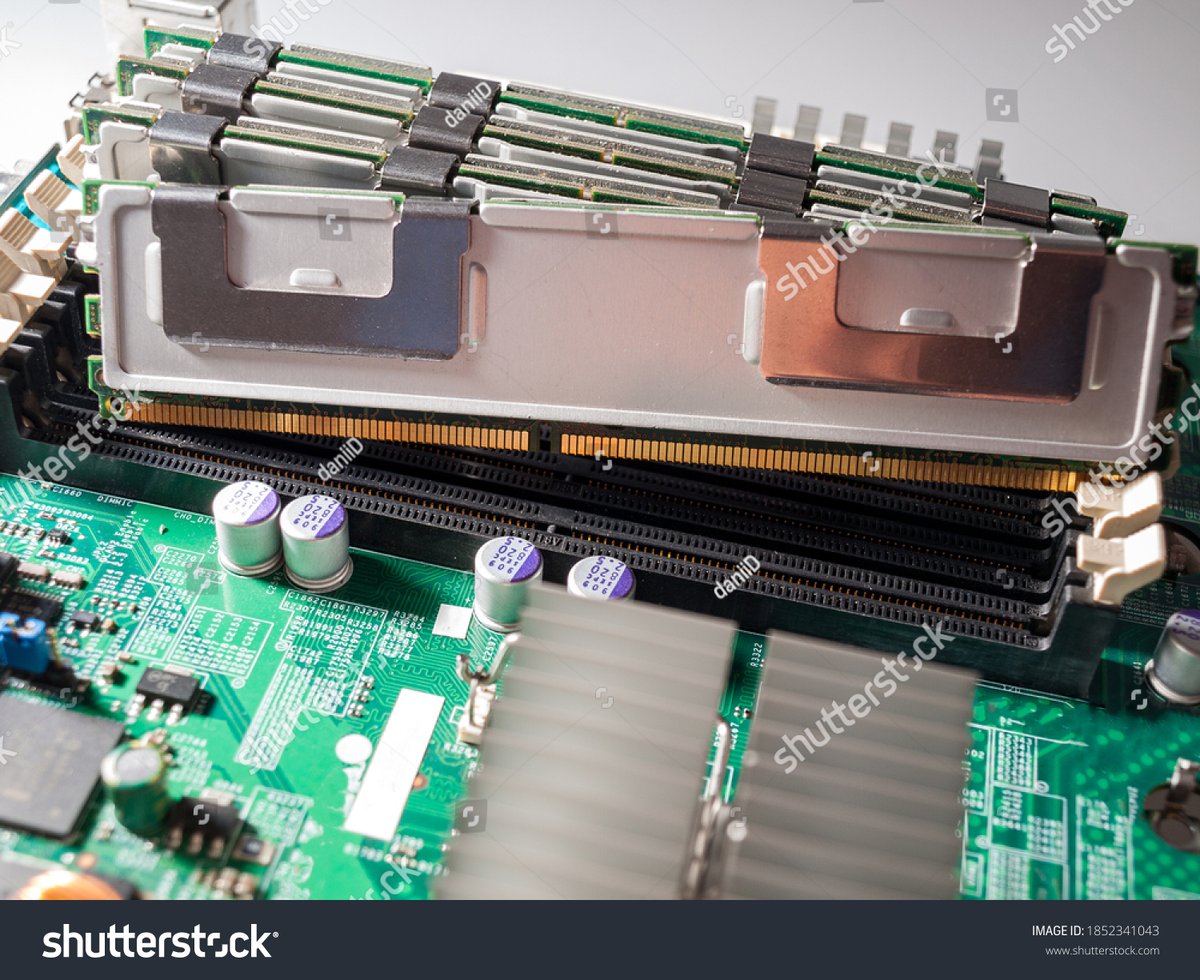
Embarking on a PC upgrade or build can feel like stepping into a high-stakes game of digital Jenga. Among the most crucial components to handle with care and precision is your RAM, especially when you're dealing with the latest generation: DDR5. Properly Installing & Troubleshooting DDR5 RAM Modules isn't just about slotting them in; it’s about understanding the nuances that ensure your system runs at its peak, avoiding frustrating boot loops, and ultimately, boosting your confidence as a PC enthusiast.
This isn't just a technical manual; it's your expert guide, designed to walk you through every step, from unboxing to advanced troubleshooting, ensuring your DDR5 memory upgrade is smooth, stable, and incredibly satisfying.
At a Glance: Your DDR5 RAM Journey
- Prep is Key: Always power down, ground yourself, and consult your motherboard manual.
- Slot It Right: Incorrect DIMM slot placement can prevent booting or hinder performance, especially for dual-channel setups.
- Gentle Force: RAM modules require firm, even pressure to seat properly until the clips snap into place.
- BIOS is Your Friend: Enable XMP/EXPO profiles in your BIOS/UEFI for optimal DDR5 speeds.
- Troubleshoot Systematically: Start with re-seating, test modules individually, update BIOS, and clear CMOS if issues persist.
- Compatibility Matters: Ensure your DDR5 modules are compatible with your specific motherboard and CPU.
- DDR4 ≠ DDR5: These memory types are physically different and not interchangeable.
DDR5 RAM: The New Frontier of Memory Performance
DDR5 RAM represents a significant leap forward from its DDR4 predecessor. With higher base speeds, increased bandwidth, and improved power efficiency, it's designed to keep pace with the demands of modern CPUs and graphics cards. If you're looking to Explore the 5th generation Ram and its full potential, a proper installation is non-negotiable.
Crucially, DDR5 modules are not physically compatible with DDR4 slots, and vice versa. There's a different key notch on the module, preventing incorrect insertion into older motherboards. This design choice prevents accidental damage, but it also means you absolutely need a DDR5-compatible motherboard and CPU to utilize this new memory standard.
Pre-Installation Checklist: Setting Yourself Up for Success
Before you even think about cracking open your PC case, a little preparation goes a long way. This checklist ensures you have everything you need and understand the critical steps to avoid common pitfalls.
1. Compatibility Check: The Golden Rule
- Motherboard Support: Confirm your motherboard explicitly supports DDR5 RAM. Check its specifications on the manufacturer's website. Pay attention to the maximum supported RAM capacity and speed (MHz).
- CPU Compatibility: While primarily a motherboard concern, your CPU's integrated memory controller (IMC) also plays a role in supported RAM speeds and configurations. Ensure your processor is compatible with your DDR5 motherboard.
- RAM Kit Matching: For dual or quad-channel setups, always buy RAM kits sold as a single package. These modules are tested together to ensure optimal compatibility and performance. Mixing different brands, speeds, or timings can lead to instability or even prevent your system from booting, even if they appear similar.
2. Safety First: Power Down and Ground Yourself
- Unplug Completely: Turn off your PC at the mains and unplug it from the wall socket. Press the power button a few times after unplugging to discharge any residual power.
- Ground Yourself: Static electricity (ESD) is a silent killer of PC components. Before touching any internal parts, ground yourself by touching a bare metal part of your PC case (after it’s unplugged) or by wearing an anti-static wrist strap connected to a grounded object. Avoid working on carpeted surfaces.
3. Gather Your Tools
You won't need much, but having these on hand makes the process smoother:
- Phillips Head Screwdriver: To open your PC case.
- Compressed Air (Optional but Recommended): To clean out any dust from existing DIMM slots if you're replacing old RAM.
- Motherboard Manual: Your absolute best friend. It contains specific instructions for DIMM slot population, maximum RAM capacity, and BIOS settings.
4. Understanding Your Motherboard Manual (It's Not Just for Show)
Seriously, spend five minutes with your motherboard manual. It will detail:
- Specific DIMM Slot Order: Which slots to use first for single, dual, or quad-channel configurations. This varies by motherboard, so don't guess!
- Max RAM Capacity: The total amount of RAM your board can handle.
- Supported Speeds: The specific DDR5 speeds (e.g., 5200MHz, 6000MHz) it can run stably.
Step-by-Step: Installing Your DDR5 RAM Modules
With your preparations complete, it's time for the main event. Handle your RAM modules with care; they are robust but sensitive to improper handling.
1. Open Your PC Case
Lay your PC case on its side on a clean, stable surface. Remove the side panel(s) that provide access to your motherboard.
2. Locate the DIMM Slots
Look for the long slots, typically located to the right of your CPU socket, on your motherboard. These are your DIMM slots. Modern motherboards usually have two or four. They are often color-coded or labeled (e.g., DIMMA1, DIMMA2, DIMMB1, DIMMB2).
- Single Module: If you're installing just one DDR5 stick, consult your motherboard manual for the primary slot. Often labeled '1', '0', or "DIMMA1", it’s usually the slot closest to the CPU in the first memory channel. While a single stick might work in any slot, using the recommended one ensures optimal configuration for future upgrades.
- Dual-Channel (Most Common & Recommended): For two RAM modules (ideal for gaming and most tasks), you'll need to use specific slots to enable dual-channel mode. This configuration doubles the effective memory bandwidth, significantly boosting performance. On a four-slot motherboard, you typically install them in slots 1 and 3, or slots 2 and 4, ensuring they are not directly next to each other. Your manual will confirm the exact pairing, often identified by matching colors. For example, if slots A1, A2, B1, B2 are present, you might use A1 and B1, or A2 and B2.
- Quad-Channel (High-End Desktops/Servers): For four modules, you generally fill all available slots, but still check your manual for specific ordering.
3. Unlock the DIMM Slots
At each end of every DIMM slot, you'll see a small plastic clip. Gently push these clips outwards away from the slot until they are fully open. Some motherboards have clips on both ends, while others might only have a clip on one side. Apply firm but not excessive force.
4. Handle Your RAM Modules with Care
Pick up your DDR5 RAM module by its edges, avoiding touching the gold connector pins or the exposed circuitry on the module itself. This prevents transferring oils or static electricity that could damage the module.
5. Align and Insert the RAM Module
Each DDR5 module has a notch along its bottom edge. This notch corresponds to a raised key in the DIMM slot. Carefully align the notch on the RAM module with the key in the slot. This ensures correct orientation; DDR5 RAM can only be inserted one way. Do not force it if it doesn't align.
Once aligned:
- Position the module directly above the open slot.
- Gently place one end of the module into the slot.
- Press down firmly and evenly on both ends of the RAM module until it clicks into place. You should hear audible clicks as the clips at the ends of the slot automatically snap inwards to secure the module. If they don't snap automatically, gently push them in manually until they lock.
Repeat this process for any additional RAM sticks, ensuring correct slot placement for dual or quad-channel operation.
6. Confirm the Modules Are Locked
Visually inspect each installed module. Ensure the clips on both sides of the DIMM slot are fully closed and gripping the module firmly. The module should be level and fully seated, with no gold contacts visible between the module and the slot.
7. Close Your PC Case and Power Up
Once all modules are securely installed, close your PC case. Reconnect all necessary cables (power, monitor, peripherals) and power on your computer.
First Boot & BIOS Configuration: Unleashing DDR5's Full Potential
After installation, your first boot might be a moment of truth. Don't panic if it doesn't immediately display a signal.
1. The Initial Boot
- POST Codes/Indicator Lights: Many motherboards have diagnostic LEDs or display POST codes (Power-On Self-Test) to indicate the boot status. If there's an issue with memory, you might see a specific LED light up (often labeled "DRAM" or "Memory") or a code indicating a memory problem. Consult your motherboard manual for what these codes/lights mean.
- Black Screen/No Display: If your system powers on but you get no display, it's often a sign of a memory issue preventing the system from completing POST.
- Successful Boot: If your system boots normally, congratulations! Head into your operating system to verify the RAM is recognized.
2. Accessing BIOS/UEFI
To truly unleash your DDR5's rated speed, you'll need to enable its Extreme Memory Profile (XMP for Intel platforms) or EXPO (Extended Profiles for Overclocking for AMD platforms) in your motherboard's BIOS/UEFI. By default, RAM often runs at its JEDEC (Joint Electron Device Engineering Council) standard speed, which is typically much lower than its advertised speed (e.g., 4800MHz for DDR5-6000 RAM).
- How to Enter BIOS: Immediately after powering on, repeatedly press the designated key (usually Delete, F2, F10, or F12) until the BIOS/UEFI interface appears.
- Enable XMP/EXPO: Navigate to the "Overclocking," "Memory Settings," or "AI Tweaker" section. Look for an option like "XMP," "EXPO," or "DOCP." Select the profile that corresponds to your RAM's advertised speed. Some motherboards offer multiple profiles; choose the highest stable one.
- Save and Exit: Save your changes and exit the BIOS. Your system will restart, and your DDR5 RAM should now be running at its optimal speed.
Troubleshooting Common DDR5 RAM Issues: When Things Go Sideways
Even with the best preparation, issues can arise. Here's how to systematically troubleshoot common problems after installing new DDR5 RAM.
1. The "No Boot" Scenario (Black Screen, No POST, or Error Codes)
This is the most common and alarming issue. Your PC powers on, fans spin, but nothing appears on the screen, or you get error beeps/codes indicating a memory problem.
- Improper Seating: The #1 Culprit
- Solution: Turn off and unplug your PC. Re-open the case. Go back to each DDR5 module and firmly press down on both ends until you hear/feel the clips click. Sometimes one side might not be fully seated. Apply about 30 pounds of pressure (a good firm push) to ensure it's fully locked. Visually inspect for any exposed gold contacts.
- Incorrect Slot Placement
- Solution: Even if seated correctly, if you're using two or four modules, they might be in the wrong slots for dual-channel (or quad-channel) operation. Refer meticulously to your motherboard manual for the correct DIMM slot configuration (e.g., A2 and B2, or A1 and B1). Incorrect placement won't damage components but can prevent booting or result in single-channel operation.
- Incompatible RAM
- Problem: The DDR5 module might not be compatible with your motherboard's specific model or BIOS version.
- Solution: Double-check your motherboard's QVL (Qualified Vendor List) on the manufacturer's website for compatible RAM modules. Use system scanner tools (like those from Crucial or Kingston) if unsure about purchasing. If you suspect incompatibility, try returning the RAM for a guaranteed compatible kit.
- Defective Module or Slot
- Problem: Rarely, a new RAM stick can be faulty, or a DIMM slot on your motherboard might be damaged.
- Solution:
- Isolate the Problem: If you have multiple sticks, remove all but one. Try to boot with just one module in the primary recommended slot (check your manual).
- Test Other Slots: If it doesn't boot, move that single module to another recommended slot.
- Swap Modules: If you have another module, swap it in and try the same process. This helps identify if the issue is with a specific RAM stick or a specific slot.
- Clean Socket: Use compressed air to blow out any dust or debris from the DIMM slots, as even tiny particles can interfere with contact.
2. System Instability (Crashes, Blue Screens of Death - BSODs)
Your system might boot, but then experience random crashes, freezes, or BSODs, especially under load.
- BIOS/UEFI Conflict or Outdated Firmware
- Problem: Your motherboard's current BIOS/UEFI version might not fully support the new DDR5 memory, especially if it's a very new or high-speed kit.
- Solution:
- Update BIOS/UEFI: This is often the fix for instability with newer RAM. Consult your motherboard manufacturer's support page for instructions on how to update your BIOS. This process can be risky if not done correctly, so follow instructions precisely.
- Clear CMOS (Reset BIOS Settings): If your system becomes unbootable or unstable after enabling XMP/EXPO, clearing the CMOS can reset your BIOS to default settings.
- Turn off and unplug your system.
- Remove the PC case cover.
- Ground yourself.
- Locate the small, silver, circular CMOS battery on your motherboard (looks like a watch battery).
- Gently remove it (usually by pressing a small metal clip).
- Leave the battery out for about 5-15 minutes (or short the "Clear CMOS" pins on your motherboard, as per your manual, for a few seconds).
- Replace the battery, close the case, and power up. You'll need to re-enter BIOS and re-enable XMP/EXPO if desired.
- XMP/EXPO Overclocking Issues
- Problem: While XMP/EXPO profiles are tested for stability, some CPU/motherboard combinations might struggle to run memory at extremely high speeds, leading to instability.
- Solution: Disable XMP/EXPO in your BIOS and test your system at default JEDEC speeds. If stable, try manually setting slightly lower speeds or timings, or use a less aggressive XMP/EXPO profile if available. You may need to incrementally increase the speed to find a stable "sweet spot."
- Defective RAM (Software Test)
- Problem: If instability persists, the DDR5 module itself might be faulty.
- Solution: Use a dedicated memory diagnostic tool like MemTest86. Download it, create a bootable USB drive, and let it run a full diagnostic pass on your RAM. This can take hours, but it will pinpoint any bad sectors or errors in your memory. If errors are found, the RAM module is likely defective and should be returned/replaced.
3. Incorrect RAM Recognition (Lower Speed, Less Capacity, or Single Channel)
Your system boots, but Windows Task Manager or BIOS reports incorrect RAM capacity or speed, or shows single-channel mode despite having two modules.
- XMP/EXPO Not Enabled:
- Solution: As discussed above, enter BIOS and ensure XMP/EXPO is enabled to run your RAM at its advertised speed. If it's disabled, your DDR5 will likely default to 4800MHz.
- Incorrect Slot Placement:
- Solution: For single-channel detection with multiple sticks, double-check your motherboard manual. You might have them in the wrong slots (e.g., A1 and A2 instead of A1 and B1). Re-seat them in the correct dual-channel configuration.
- Mixing Modules:
- Problem: If you've tried to mix different RAM kits (even if they have similar specs), you might experience performance degradation, or your system might only recognize the lowest common denominator in terms of speed and capacity.
- Solution: Ideally, always use matched kits. If you must mix, ensure all specs (speed, timings, voltage) are identical. If issues persist, remove the mismatched modules and use only the matched set.
- Motherboard Limitations:
- Problem: Your motherboard might not support the full advertised speed or capacity of your DDR5 kit.
- Solution: Re-verify your motherboard's QVL and specifications. If your RAM is faster than what your board officially supports, it will downclock to the maximum supported speed.
4. Non-Memory Problems After Memory Upgrade (Ghost Issues)
Sometimes, after a RAM upgrade, seemingly unrelated issues pop up (e.g., display problems, USB devices not working, network loss).
- Accidental Disconnections:
- Solution: When working inside a PC, it's easy to accidentally nudge a cable or component. Check all power cables, SATA cables, GPU power, and front panel connectors to ensure they are still firmly seated.
- Device Driver Issues:
- Problem: New memory shouldn't directly cause driver issues, but in rare cases, system instability can corrupt drivers or expose existing driver weaknesses.
- Solution: Update device drivers for any affected components (graphics card, network adapter, USB controller). If an update doesn't work, try a clean uninstall and reinstall of the latest drivers, potentially in Safe Mode.
- Application Reconfiguration:
- Problem: Certain applications might have internal settings optimized for your previous RAM configuration.
- Solution: Run any built-in diagnostic tools for malfunctioning applications. If that fails, uninstall and reinstall the program (after backing up user files) to ensure a fresh configuration.
Advanced Tips for DDR5 Optimization & Future-Proofing
Once your DDR5 RAM is installed and running smoothly, here are some final thoughts to ensure you're getting the most out of it and planning for the future.
- Monitor RAM Performance: Use tools like CPU-Z or HWMonitor to verify your RAM speed, timings, and voltage within Windows. Task Manager also provides basic usage statistics.
- Leave Slots for Upgrades: If you only used two slots for dual-channel operation on a four-slot motherboard, leaving two empty allows for easy capacity expansion down the line without replacing your existing modules.
- Consider Your Needs: For most users, 32GB of DDR5 RAM (in a 2x16GB configuration) running at 6000MHz with tight timings offers an excellent balance of performance and value. Pushing for significantly higher speeds might yield diminishing returns for gaming and general use, often at a higher cost and potential stability trade-offs.
Final Thoughts: Empowering Your DIY Journey
Installing and troubleshooting DDR5 RAM modules might seem daunting at first, but with a systematic approach, patience, and this guide, you're well-equipped to tackle it. Remember, most issues stem from improper seating or incorrect BIOS settings, and almost all can be resolved with methodical testing.
The satisfaction of a perfectly running, self-built or upgraded PC is immense. By confidently installing your DDR5 memory, you're not just assembling parts; you're unlocking the full potential of your system, ready for whatever digital adventures lie ahead. Happy computing!